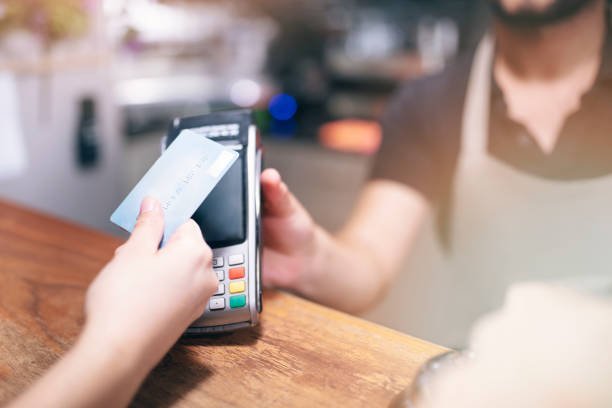
Imagine this: you’re at a networking event, the conversation is flowing, and someone asks for your contact details. You reach into your pocket — no card. Sound familiar? It happens to the best of us. But here’s the good news: that awkward moment is officially a thing of the past. With NFC business cards and Apple Wallet integration, your contact information is always with you, always polished, and always ready to share in seconds.
Whether you’ve just received your first NFC smart card or you’ve been using one for a while and want to take it further, this guide will walk you through everything you need to know. From what NFC technology actually is to step-by-step instructions for adding your digital business card to Apple Wallet on your iPhone, we’ve got you covered.
What Is an NFC Business Card, Anyway?
NFC stands for Near Field Communication — a wireless technology that lets two devices exchange information when they’re held close together, usually within a few centimeters. An NFC business card is a smart card embedded with a tiny NFC chip that can beam your contact details, website, social media profiles, or even portfolio links directly to someone’s smartphone with a simple tap.
Unlike traditional paper cards, NFC cards are reusable, eco-friendly, and endlessly updatable. Brands like HiHello, Popl, Blinq, Linq, and Mobilo are among the leading providers of NFC-enabled digital business cards. Each platform offers its own ecosystem, app, and features — but many of them share one major perk: the ability to add your digital card directly to Apple Wallet on your iPhone.
Why Add Your Digital Business Card to Apple Wallet?
Apple Wallet (formerly known as Passbook) is an app built into every iPhone running iOS 6 or later. Most people use it for boarding passes, loyalty cards, event tickets, and Apple Pay. But it’s also a surprisingly powerful home for your digital business card — and here’s why that matters.
Storing your business card in Apple Wallet gives you some serious advantages:
- No app required for sharing — your card lives natively in iPhone’s Wallet.
- It’s accessible right from the lock screen on supported iPhones.
- You can share via QR code, AirDrop, or even a simple tap through NFC.
- It looks clean, professional, and tech-savvy in any networking scenario.
For professionals, entrepreneurs, salespeople, and creatives alike, having your contact card in Apple Wallet is the modern equivalent of always having a perfectly printed business card at the ready — except it’s way cooler.
What You’ll Need Before Getting Started
Before diving into the steps, let’s make sure you have everything in place. The good news is, the requirements are minimal. You’ll need an iPhone running iOS 9 or later (though iOS 13+ is recommended for the best experience), an NFC business card from a supported platform, and an account set up with your card provider. You may also need the provider’s companion app installed, depending on which platform you use — though some let you bypass this entirely.
Platforms like HiHello and Popl offer native Apple Wallet integration as a built-in feature. Others, like Linq and Mobilo, also support Wallet passes but may route you through their app or web dashboard first. Check your provider’s support page if you’re unsure — and don’t worry, we’ll cover the general process that applies across most platforms.
Step-by-Step: How to Add Your NFC Business Card to Apple Wallet
The process is simpler than you might think, and it usually takes less than two minutes. Here’s how to do it:
Step 1: Set Up Your Digital Business Card Profile
First, open your NFC card provider’s app or visit their website and log into your account. Make sure your digital business card profile is complete — this means adding your name, title, company, phone number, email, website, and any social media links you want to share. The more complete your profile, the more impressive your card will be when someone receives it. Platforms like HiHello let you add a profile photo and even branded colors.
Step 2: Find the Apple Wallet Option
Once your profile is ready, look for an option labeled “Add to Apple Wallet,” “Save to Wallet,” or something similar. This is typically found in your profile settings, sharing options, or under a dedicated “Wallet Pass” section. If you’re using the Popl app, for example, tap your profile icon, then look for the Wallet option under sharing settings. On HiHello, you’ll find it in the card sharing menu. The exact location varies slightly by platform, but it’s almost always prominently placed.
Step 3: Download and Open the Wallet Pass
When you tap the Apple Wallet button, your device will generate a .pkpass file — this is the standard file format that Apple Wallet uses for all passes. A prompt will appear asking if you want to add this pass to your Wallet. Tap “Add” in the top right corner of the screen, and just like that, your digital business card is now saved inside Apple Wallet on your iPhone. It’s really that fast.
Step 4: Access and Share from Apple Wallet
Open the Wallet app on your iPhone and you’ll see your new business card pass sitting right there alongside your other passes. Tap on it to expand your card and you’ll see a QR code that others can scan to instantly receive your contact information. You can also share your card from Wallet using the share icon, which lets you send it via AirDrop, iMessage, email, and more. Some passes even appear automatically on your iPhone’s lock screen when location or time triggers are set.
Sharing Your Apple Wallet Business Card: The Different Methods
Once your card is in Apple Wallet, you have several flexible ways to share it depending on the situation. Understanding all your options makes you even more prepared for any networking moment.
- QR Code Sharing: Open your Wallet card and present the QR code for the other person to scan with their camera app. Works with both iPhone and Android devices.
- NFC Tap: If your physical NFC card is programmed to direct contacts to your digital profile, a tap still works the same way — even without your phone present.
- AirDrop: Share your Wallet pass directly with nearby iPhone users via AirDrop for an instant, wireless exchange.
- iMessage or Email: Send your card as a link or attachment to anyone — even if they aren’t in the same room.
The versatility of Apple Wallet integration means you’re never caught without a way to share — whether you’re in a face-to-face meeting or following up after a virtual conference.
Keeping Your Card Updated: The Real Magic of Digital Cards
One of the biggest advantages of a digital NFC business card over its paper counterpart is that it’s always updatable. Changed your job title? Got a new phone number? Launched a new website? Simply log into your card provider’s platform and update your profile. The great news is that most platforms — including HiHello and Popl — automatically sync changes to your Wallet pass.
This means anyone who has already received your card sees your updated information without you needing to redistribute anything. For sales professionals and entrepreneurs who frequently rebrand or change roles, this feature alone is a game-changer. No more reprinting 500 paper cards because you got promoted — your Apple Wallet card updates silently and instantly.
Troubleshooting: What to Do If It Doesn’t Work
Occasionally, you might hit a snag when trying to add your pass to Apple Wallet. Here are the most common issues and quick fixes. If the “Add to Apple Wallet” button isn’t appearing, ensure your app is updated to the latest version — platforms push Wallet support through regular updates. If the .pkpass file downloads but won’t open, try tapping it directly from your browser’s download manager or from the Files app on your iPhone.
If you’re getting an error message when adding the pass, it’s usually a sign that your iOS software needs an update — head to Settings, then General, then Software Update to check. Some users also find that restarting the iPhone clears the issue. And if all else fails, contact your card provider’s customer support team — most offer live chat and are well-versed in walking users through Apple Wallet setup on any device.
NFC Business Cards and Apple Wallet: Privacy and Security Considerations
Privacy is a fair concern anytime you’re sharing personal information digitally. The good news is that NFC business cards and Apple Wallet passes are designed with this in mind. Your card only shares the information you’ve deliberately added to your profile — nothing more. NFC chips don’t transmit data unless they’re actively tapped to another device, so there’s no passive broadcasting of your information.
Apple Wallet passes are encrypted and stored securely on your device. Leading platforms like HiHello, Popl, and Blinq are GDPR-compliant and use SSL encryption to protect your data. You can also control exactly what appears on your card, creating different profiles for different contexts — one for professional networking, another for personal use — and choosing which one lives in your Wallet at any given time.
Best NFC Business Card Platforms Compatible with Apple Wallet
Not all NFC card platforms are created equal when it comes to Apple Wallet support. Here’s a quick look at the top players that offer seamless integration. HiHello is widely regarded as one of the most polished options, with full Apple Wallet support and robust team features for businesses. Popl is another favorite, known for its stylish physical cards and smooth Wallet pass functionality. Blinq offers excellent customization and one-tap Wallet add. Linq focuses on simplicity and clean design. Mobilo caters more to enterprise teams but still offers Wallet integration.
Each platform has free and paid tiers, so you can start at no cost and upgrade as your needs grow. When choosing, look for platforms that include Apple Wallet support in their free plan, offer easy profile editing, and provide strong analytics so you can see how many people are engaging with your card.
The Future of Networking Is in Your Pocket
The rise of contactless technology, accelerated by the global shift toward digital-first experiences, has permanently changed the way professionals connect. NFC business cards represent a natural evolution — combining the tactile satisfaction of handing someone something physical with the endless flexibility of digital. And by anchoring your card in Apple Wallet, you’re making sure it’s always available, always accurate, and always impressive.
Whether you’re a freelancer, founder, sales executive, or creative professional, this tiny upgrade to your networking toolkit can make a genuinely outsized impression. In a world where first impressions matter and attention spans are short, being the person who shares their contact details with a sleek QR code from Apple Wallet is the kind of move that people remember.
Frequently Asked Questions (FAQs)
Can I add my NFC business card to Apple Wallet for free?
Yes! Many Digital Busniess Card platforms — including HiHello and Popl — include Apple Wallet integration in their free plans. Some advanced customization features may require a paid subscription, but the basic ability to add and share your card from Apple Wallet is usually available at no cost.
Do I need the NFC business card app installed to share from Apple Wallet?
No. Once your card is saved in Apple Wallet, you can share it directly from the Wallet app without opening your card provider’s app. The pass lives natively on your device, making it accessible even if you later delete the provider’s app.
Can Android users receive my Apple Wallet business card?
Yes. While Android users can’t open an Apple Wallet pass directly, they can still receive your contact information by scanning the QR code displayed on your card in Wallet — any smartphone camera can do this. The QR code links to your digital profile, which is accessible from any device and browser.
Will my Apple Wallet card update automatically if I change my information?
Most platforms support automatic pass updates, meaning changes you make to your profile are pushed to your Apple Wallet card without you needing to re-add the pass. This is one of the most valuable features of digital NFC cards — your card is always current, even for people who received it months ago.
Is NFC technology safe to use?
Absolutely. NFC operates at very short range (typically under 4 cm) and only activates when two NFC devices are deliberately brought close together. There’s no risk of someone remotely scanning your card without your knowledge. NFC is the same technology used in contactless bank card payments — it’s secure, widely tested, and trusted globally.
What if I lose my iPhone — can someone else access my Apple Wallet business card?
Apple Wallet on a lost or stolen iPhone is protected by your device’s passcode, Face ID, or Touch ID. Even if someone gains access to your Wallet, your business card pass only contains the information you’ve chosen to display publicly — the same information you’d hand to anyone at a networking event. There’s no sensitive financial data stored in a business card pass.
Can I have multiple business card passes in Apple Wallet?
Yes! Apple Wallet supports multiple passes, so you can have different cards for different contexts — for example, one card for your main job, another for your side business, and a personal card for social networking. Simply add each one separately through your provider’s platform, and they’ll all coexist in your Wallet ready to be selected as needed.
Ready to upgrade your networking game? Adding your NFC business card to Apple Wallet takes just a couple of minutes — and the impression it leaves can last a whole lot longer. Ditch the paper, embrace the future, and let your iPhone do the talking.